The short version
- A skill gives instructions; a separate image tool renders the pixels.
- Inspect factual accuracy, crop, and visible defects at the final display size.
An image generator skill is a repeatable way to brief, create, and review images with an AI tool. It can specify art direction and quality checks, but the skill file does not provide a model, an API key, or permission to use somebody else's image. Pair it with the image tool available in your account and inspect the output at the size where people will see it.
Separate the skill from the renderer
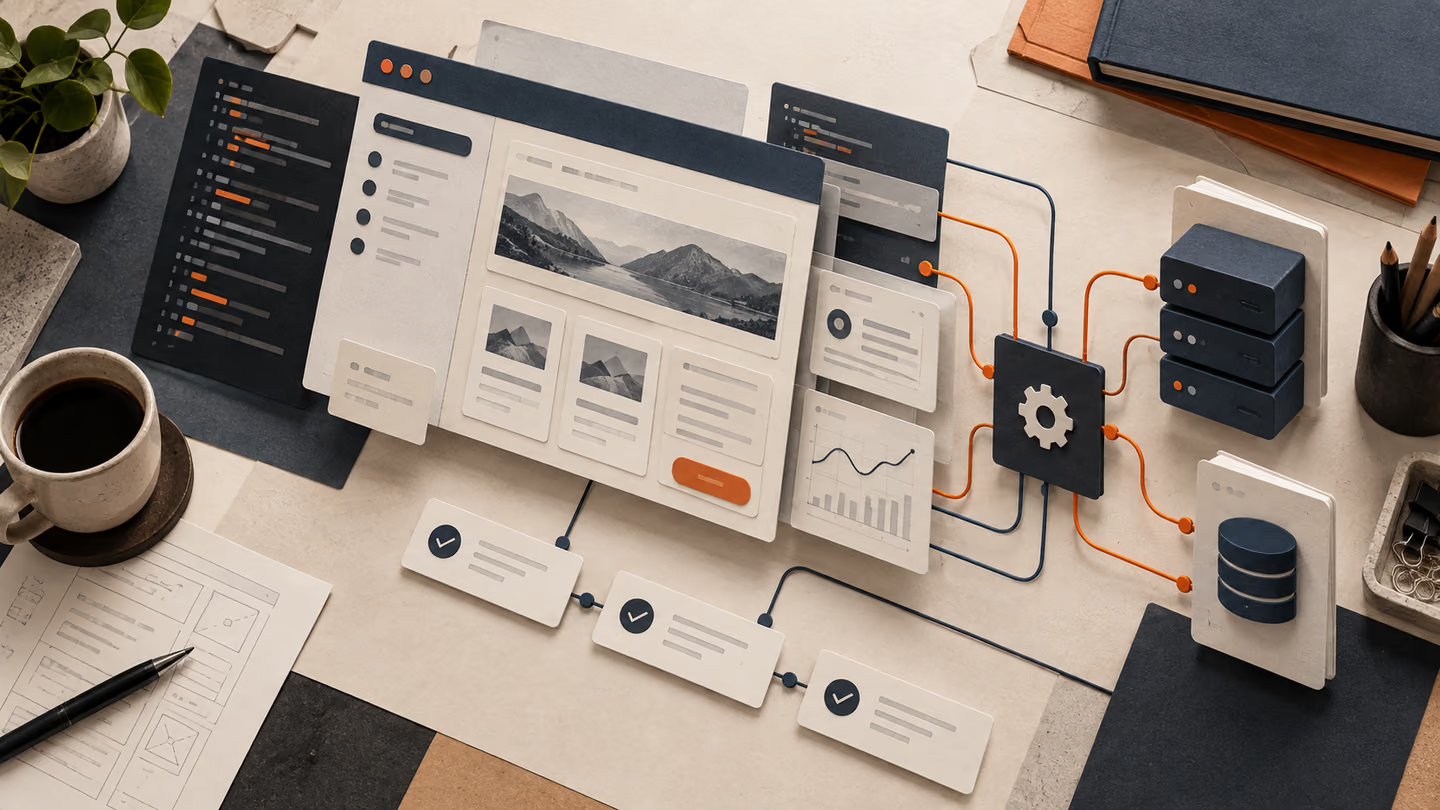
A SKILL.md can tell an assistant when to generate, how to use references, and what to verify. The renderer is the actual image capability in an app or API. That distinction matters when a skill promises “one-click images”: the workflow may install correctly while generation still depends on tool access, account limits, or a separate service. The current OpenAI image generation guide describes available API behavior; check the documentation for whichever renderer you choose before hard-coding a model name in your own workflow.
Part | What it does | What to check |
|---|---|---|
Skill instructions | Define brief, references, selection, and review | Do they fit the intended image and user taste? |
Image renderer | Generates or edits pixels | Is it available, and does it support the required edit? |
Brand assets | Supply exact logo, UI, and typography | Are files current and authorized? |
Human review | Approves truth, quality, crop, and use | Does the image say what the page claims? |
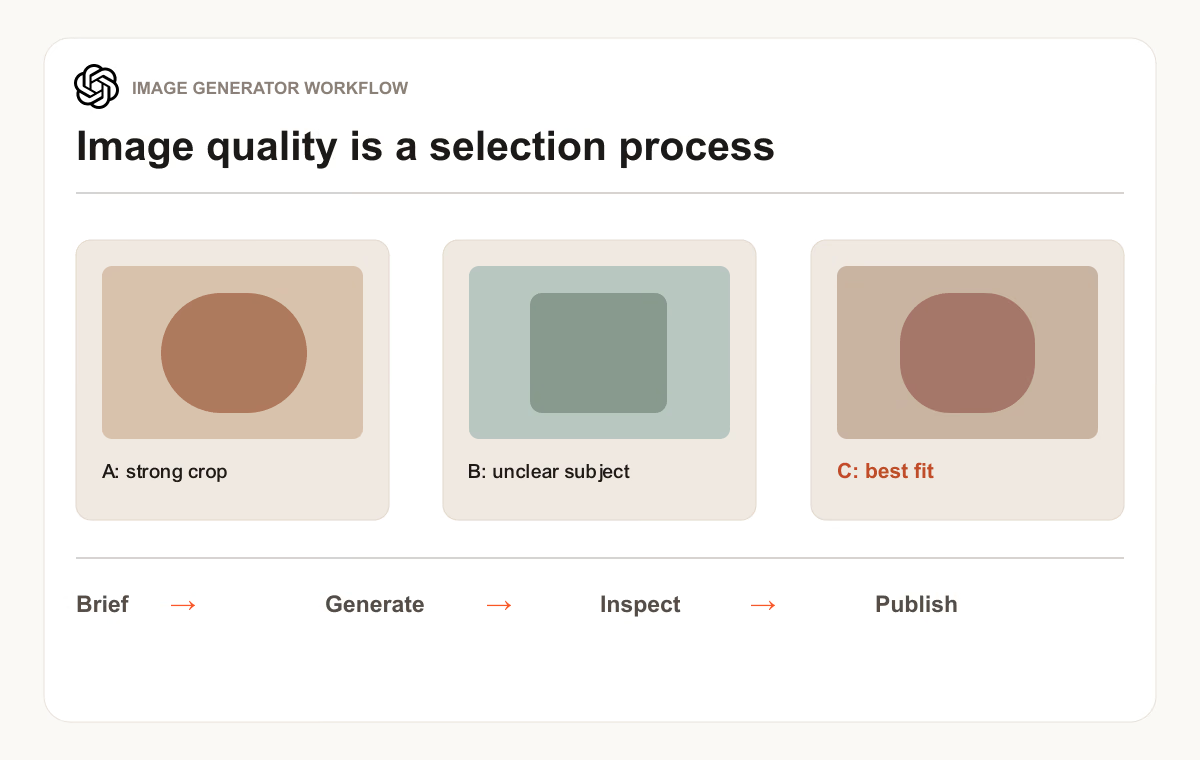
Write a visual brief tied to the page
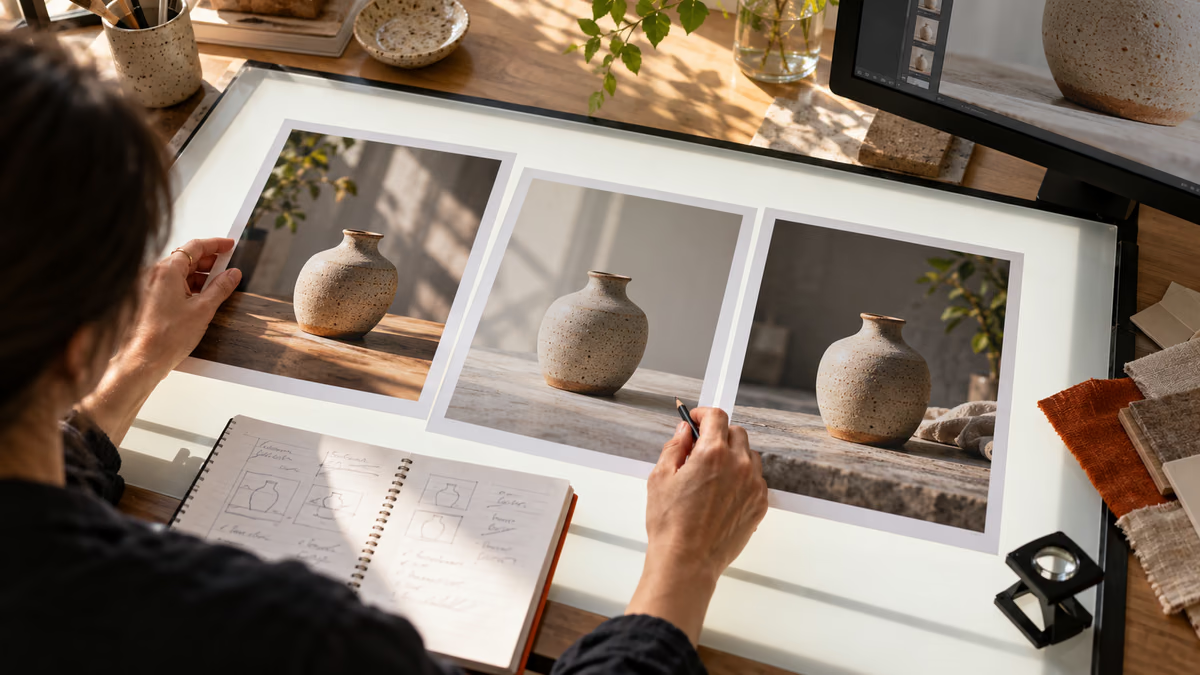
For a blog cover about image generation, “futuristic AI brain with neon glow” says little about the reader's task. A photo of an art director comparing three image proofs on a light table shows selection and judgment. It also gives the page a subject that survives a small thumbnail crop.
State the intended placement, aspect ratio, focal subject, setting, lighting, palette, and what the image must communicate. Supply real references when a visual style matters. Describe the principle you want from a reference, such as warm editorial lighting or a close crop of physical prints. Ask for an original composition rather than a replica of another artist's frame.
The OpenAI image prompting guide covers prompt structure and iteration for its tools. A practical first prompt can be short: “Editorial photograph for a guide to image-generation workflows: an art director at a light table comparing three distinct product-photo proofs, natural studio light, restrained warm palette, believable hands and materials, wide composition with room for a crop, no text or logos.”
Compare candidates with the real use in mind
Generate a few distinct candidates. Pick the one that explains the subject, not the one with the most decoration. Open it at full resolution, then at the site's card and mobile sizes. Examine hands, shadows, perspective, repeated objects, impossible interface details, accidental lettering, and empty areas that will be cropped away.
If the image must show an exact product UI, use a real screenshot and an editing or compositing step. Generated “screenshots” can invent controls and copy. If a logo matters, place the real vector asset after generation. For a diagram with labels, create the diagram from verified text and icons so its information remains correct.
Failure | Better action |
|---|---|
The image looks polished but could illustrate any AI article | Add a concrete activity from this article to the brief |
The tool invents a brand mark or interface | Composite the supplied asset or screenshot |
Subject disappears in the mobile crop | Move the focal point or choose another frame |
The image implies a result you have not shown | Change the scene or explain the actual evidence |
Export and describe the result
Save a web-friendly version with a useful file name. For a cover, use a consistent aspect ratio and enough resolution for the largest display. Write alt text that describes the visible subject, not a string of target keywords: “Art director comparing three product image proofs on a light table.” Keep the original source and any rights notes where the team can find them.
The Image Generator Workflow skill packages this brief-review-export loop. For prompts that focus on specific image tasks, see AI image prompts and ChatGPT image prompts.
Common questions
Does installing the skill give me image-generation access?
No. The skill contains instructions. The image tool in your app or an API account supplies generation. Check that the tool is available in your environment before asking the skill to create an asset, and record which tool made the final image when your publishing workflow needs provenance.
Can I use a generated blog image without editing it?
Sometimes. Approve the actual image, crop, and implied claims first. Editorial photos with no exact text or product UI may need only size and color adjustments. Diagrams, statistics, logos, and interface shots need verified source material and often a separate compositing step.
Put it into practice
Your next step
Have a question or a correction?
Contact Thrive